Navigation
EVMaxhas numerous interface windows to enter, maintain, and view data. There are two main menus you use to select the window you want.
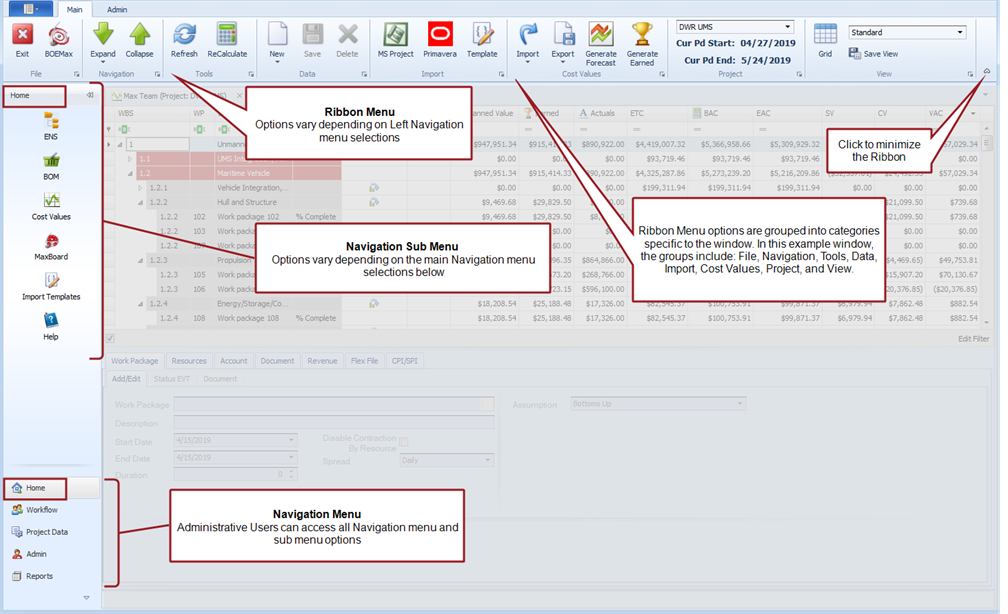
- Navigation Menu. The left Navigation Menu contains the main options and related sub options for selecting the various EVMax functions. Selecting a left main Navigation Menu option and sub option displays the applicable window in the workspace. The main Navigation Menu options include:
- Home. Selecting to view the main EVMax window is the one of the workspaces you are most likely to use.
- Workflow. Includes the sub options for the workflow process.
- Project Data. Includes all the sub options for managing project data and projects. You must be an Administrative User to access the Project Data options.
- Admin. Includes administrative functions such as changing the interface appearance or changing a password. Includes other setup options for Administrative Users.
- Reports. Includes various sub options for producing data views and reports.
- Ribbon Menu. The top Ribbon Menu provides a set of options for working with the data in the workspace windows. It may also include reference information such as the start date for a project (main EVMax window). The Ribbon Menu options are specific to each window and are grouped into categories such as "File", "Data", "Project", or "View." Typical Ribbon Menu options include:
- Refresh. Click this option any time to refresh the data in the current window.
- New. Depending on the window, there may be a dropdown Copy From option.
- Save and Delete.
- Import and Export.
- A dropdown to select a structure or project.
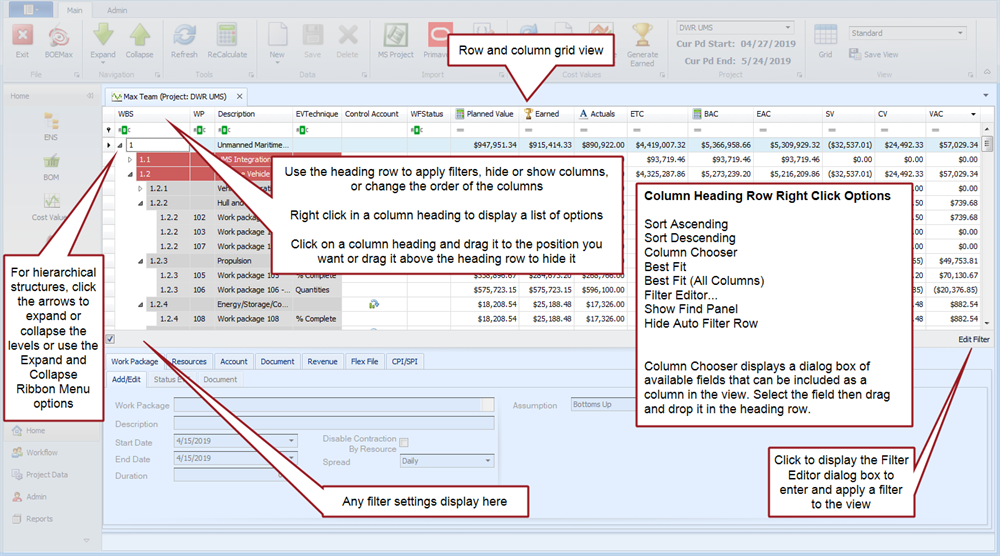
Once you select the option you want, the applicable window tab displays in the workspace to the right of the Navigation Menu and below the Ribbon Menu. Various window tabs may contain secondary tabs to enter, update, or view data. The default view is the main EVMax window. This window displays a standard row and column grid view similar to Microsoft Excel to enter and maintain data.
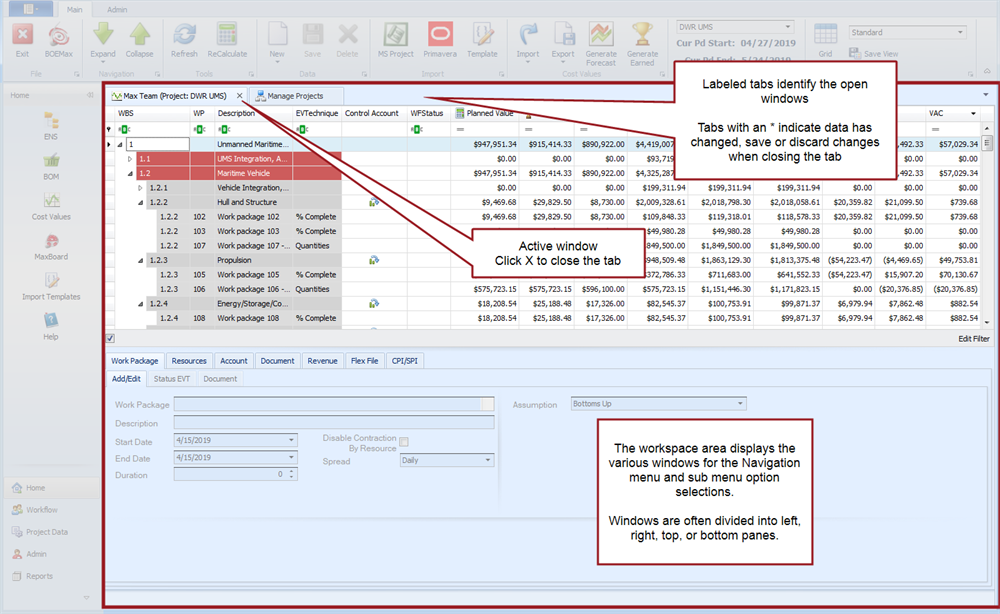
You can have multiple windows open to quickly move between data views. The labeled tabs identify the open windows. The active window is easily identified - the tab includes an "X" to the right of the label. Click on the X to close the window. When you see an asterisk (*) in the tab, it means the data has changed. Select the tab and save your changes in the Ribbon Menu or EVMax prompts you to either save or discard your changes when you close the window.
You will find additional use notes for the various EVMax windows throughout the topics in this user guide.
Navigation Menu and Ribbon Menu
Workspace Windows and Tabs
Row and Column Grid Views