Bill of Material (BOM)
 Admin User
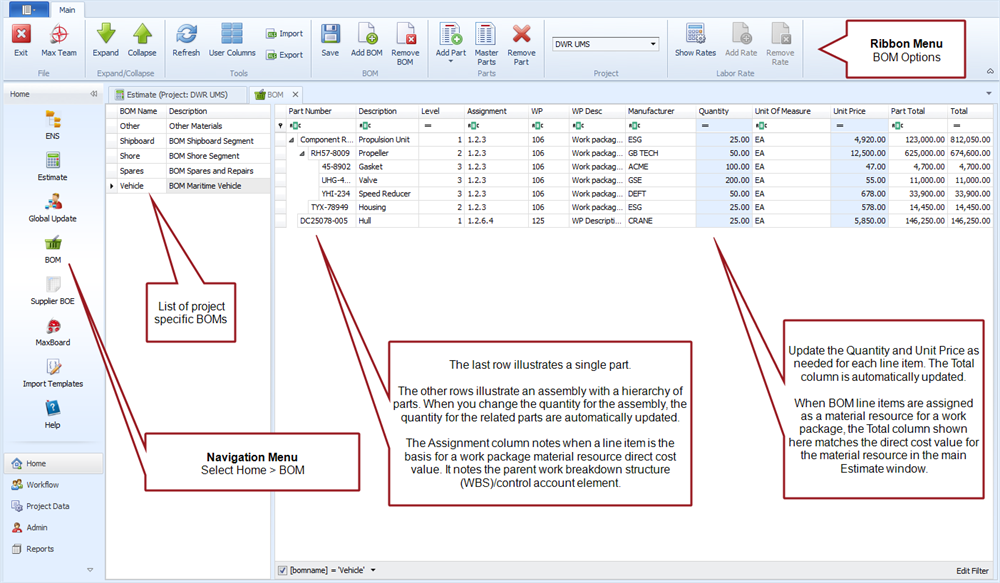
Bills of material (BOMs) are project specific and can be shared between BOEMax and MaxTeam or EVMax. You can create one or more BOMs for a project to match how you want to organize and maintain the data. A BOM can be made up of a list of parts and assemblies identified with a name, description, manufacturer, unit of measure, and quantity. An assembly groups a set of individual parts into a hierarchical structure to create a larger material component. Changing the assembly quantity automatically determines the number of individual parts.
The master parts list all projects share and the project specific BOMs are related. When you add parts to a project BOM that do not exist in the master list, the master list is automatically updated. Assemblies are also automatically added to the master list when you create a project specific assembly or import a hierarchical bill of material into a project.
There are three ways to populate a BOM for a project. You can:
- Select a part or assembly from the master parts list. Once you copy the part or assembly information into your project, that data becomes specific to that project. As needed, update the quantity or unit price for the project.
- Add a part or assembly that doesn't exist in the master parts list directly into your project BOM. They are also automatically added to the master parts list.
- Import the part or assembly data from your material management system or manufacturing/enterprise resource planning (M/ERP) system. This is often the easiest way to build out a BOM. Any parts or assemblies that don't exist in the master parts list are automatically added.
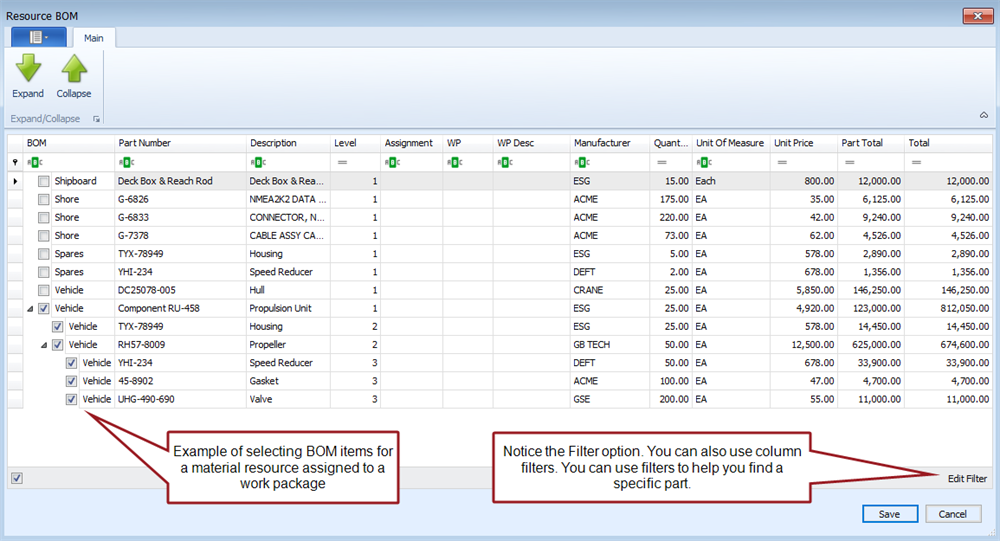
Once you have created the project's BOMs and entered quantities for the material items, you can select the parts or assemblies from the BOMs to determine the base result direct cost value for a material resource assigned to a Material assumption type work package. Once a part or assembly is selected from a BOM for a material work package, the Assignment column in the BOM displays the applicable work breakdown structure (WBS)/control account and work packages so it is easy to identify work elements with material resource assignments. You can update the quantities or unit price in the BOM at any time to update the base result direct cost value for a material resource.
For the project specific BOMs you can also:
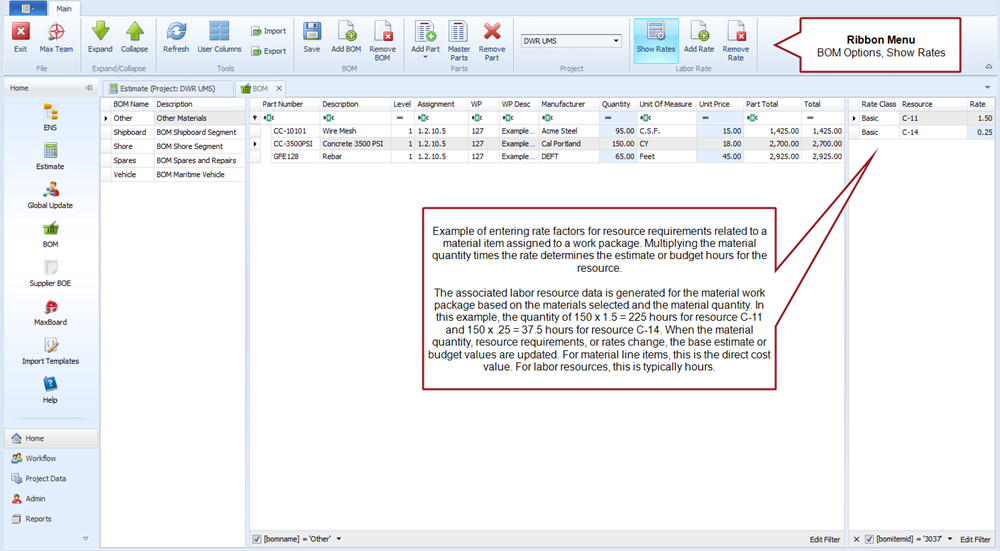
- Identify associated labor resources and a labor rate factor for material in a BOM. This is often used for material take offs in engineering and construction industries where material quantities determine the craft labor resource hours. For example, each cubic yard of material requires one or more trade craft resources based on a standard rate factor (material quantity times the labor resource rate factor such as 1.0 or .25) calculates the estimate or budget resource labor hours in addition to the material direct cost. These labor resource assignments and labor hours are automatically created for the material work package associated with the material item. If you change the material quantity, unit price, associated resources, or rate factor in a BOM, the base results are also updated.
- Add project specific user defined columns to the BOMs. The columns can be text fields or quantities. These user defined columns are added to all of the BOMs you create for the project.
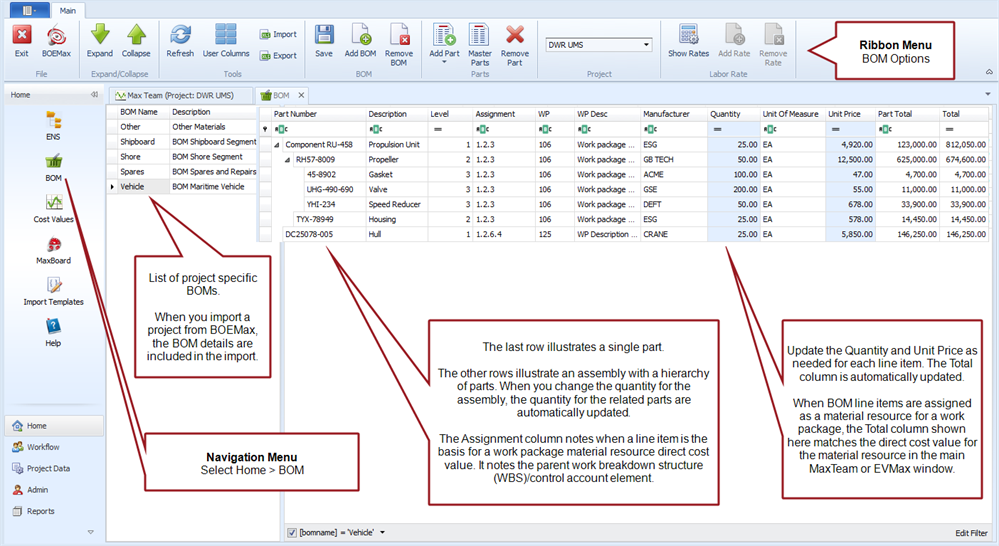
If you intend to share the project BOMs between BOEMax and MaxTeam or EVMax for the execution phase of the project, recommend creating the BOMs in BOEMax. When you import an existing project from BOEMax to create the project in MaxTeam or EVMax, the project BOMs are included in the import process. You can then use the BOMs to status work packages assigned the Material assumption type and Quantities earned value technique. You can also enter the actual quantities and unit price for material variance analysis. When you are using the BOM for material take off quantities with labor resources and rate factors associated with the material item, recommend using the Earning Rules EV Technique because you are mixing the elements of cost (labor and material) in the same work package.
 Implementation Tips
- Be sure to define the applicable non labor or material resources in the resource structure for the project. For example, perhaps you have a level 2 resource named "NON LABOR," with a level 3 resource named "MATERIALS." You could also define a level 4 set of named resources to break out different categories of materials such as engineering materials and production materials.
What do you want to do?
- Create a BOM
- Add BOM User Columns
- Add Parts to a BOM. Includes steps for a adding a single part or assembly as well as adding material labor resource and rate factors.
- Delete a BOM
- Export a BOM
- Import a BOM
- Enter Material Values Using BOM
- View the Budget BOM
- Status Material Work Packages
- View the Actual Costs BOM
BOM Tab
Main tab menu options, BOEMax
Example of Show Rates Option, BOEMax
Main tab menu options, MaxTeam or EVMax
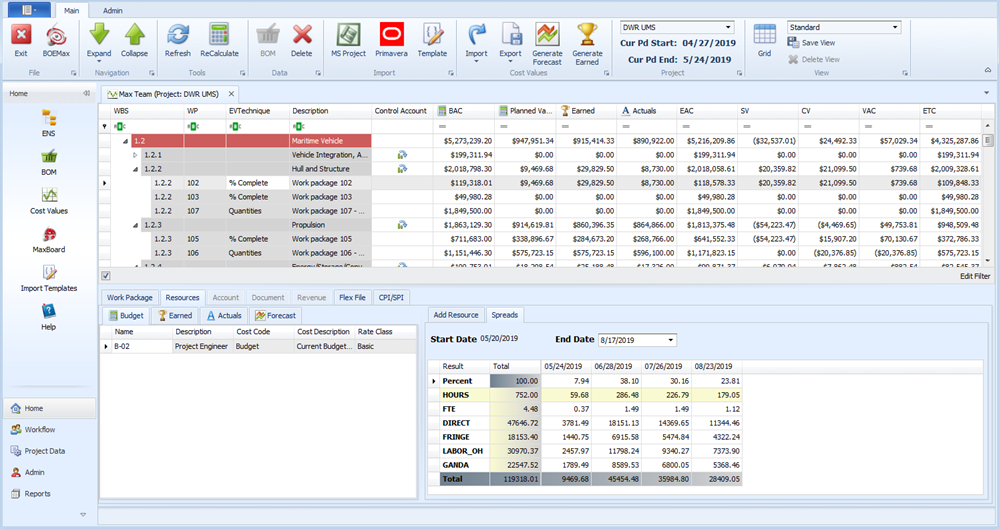
Main EVMax Window, Resources Tab, Budget Tab
Material Work Package Assumption, Material Resource
Clicking BOM in the Ribbon Menu displays the window.