Enter Base Values
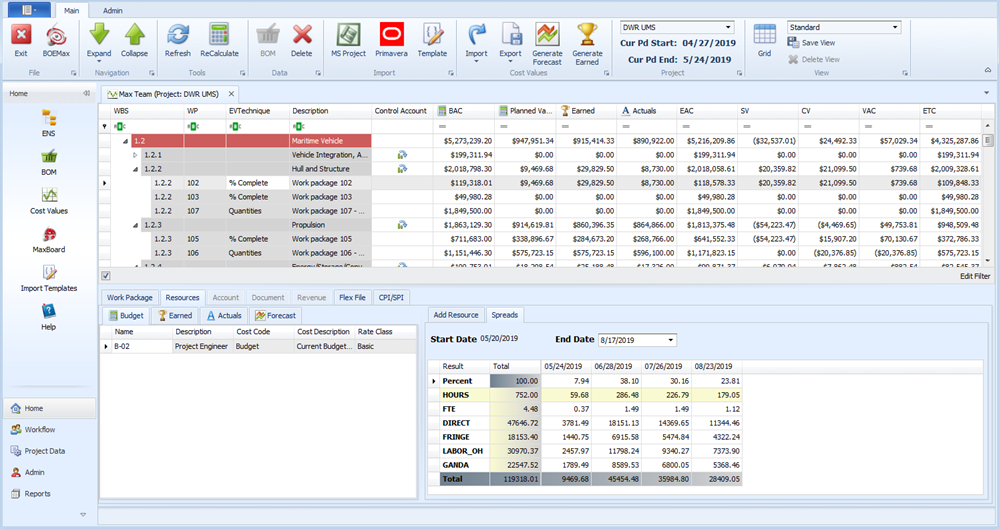
Once you have identified your control accounts, defined the work packages for the control accounts and assigned resources to those work packages, the next step is to enter the labor FTEs/hours or non labor direct cost base result values for the assigned resources. The work package start and end dates determine the time frame for the value details.
When you have implemented the change control workflow process on your project, do not change your budget data in EVMax. This includes work packages, resource assignments, and time phased values. The change control process assumes you are using BOEMax to maintain a historical archive of the budget changes. All changes, including updates for rolling wave planning, are first modeled in BOEMax and once approved, the changes are merged into EVMax to maintain the budget data. The shared workflow functions ensure all changes to the baseline data are automatically documented using the source data in BOEMax and EVMax.
The assigned rate structure and resource structure determines how other results are automatically calculated from the base values you enter. For example, when you enter resource labor hours for a work package, the direct cost and indirect costs such as labor overheads and G&A overheads are calculated for you. As you enter the base values and other results are calculated for you, the values in the total budget column are automatically updated for the applicable WBS hierarchy rows so you can easily assess the total cost estimate or budget for the work elements as well as the total project. Should you make changes to the rates or resource result calculations, you can recalculate the values as needed. For example, you may need to update the rates twice a year to reflect the current forward pricing overhead rates.
You can add custom total value fields as a user defined column in the main EVMax window. Once you create these fields, you can hide or show them in the main EVMax window. You can also include the custom total fields in report outputs.
The options to enter your time phased values is dependent upon the work package:
- Assumption type. You have four options:
- Bottoms Up. This is the default assumption and is commonly used for labor resources estimated or planned in FTEs or hours. It also used for non labor resources estimated or planned in direct cost values.
- Parametric. When you select this assumption, you also select a defined parametric type. For this assumption type, recommend using BOEMax to enter your labor resource hours because BOEMax provides a Parametric Calculation window that isn't available in MaxTeam or EVMax. To use the Parametric option, you will need to add parametric types to match your business environment and import the historical parametric data into BOEMax. See Parametric Types. All ProjStream software tools and projects share the defined parametric types.
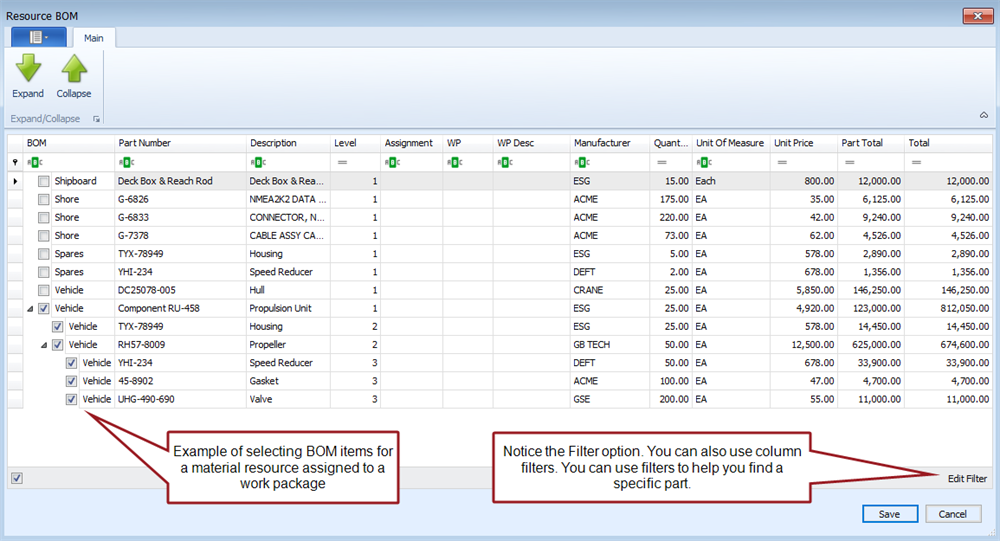
- Material. Use this option when you have defined one or more bills of material (BOMs) for the project. See Bill of Material (BOM). You use the Resource BOM window to select the applicable materials for the work package. The BOM identifies the work elements where the materials are assigned.
- Travel. For this assumption type, recommend using BOEMax because it provides a Travel Form for you to enter details about the travel costs that isn't available in MaxTeam or EVMax. Otherwise, you can enter a direct cost base result in MaxTeam or EVMax for the travel costs.
- Spread or distribution profile for the assigned resource FTEs, hours, or direct cost total values. The typical default is a linear spread.
- EV Technique. The default earned value technique is percent complete.
 Implementation Tips
- As a reminder, the calculation settings in the resource structure determine the base result for the assigned resource as well as how rates are applied to calculate indirect costs and determine the total cost. Should you encounter instances where indirect costs are not being calculated, verify the assigned resource result calculations have been set. See Set Resource Calculations.
What do you want to do?
- Enter Time Phased Values
- Enter Material Values Using BOM, Material work package assumption
- Copy and Paste Values
- Edit Time Phased Values
- Recalculate Values when you make changes to rates or resource result calculations
- Define Custom Total Fields to use in the main EVMax window. You must be an administrative user to create custom total fields.
Main EVMax Window, Resources Tab, Budget Tab
Material Work Package Assumption, Material Resource
Clicking BOM in the Ribbon Menu displays the window.