Implement the Change Control Process
The following steps provide a framework to implement the change control workflow process using BOEMax and EVMax. You can also use this framework to implement rolling wave planning. All control account and subordinate work package changes are first modeled in BOEMax. All approved changes are then merged into the active project in EVMax.
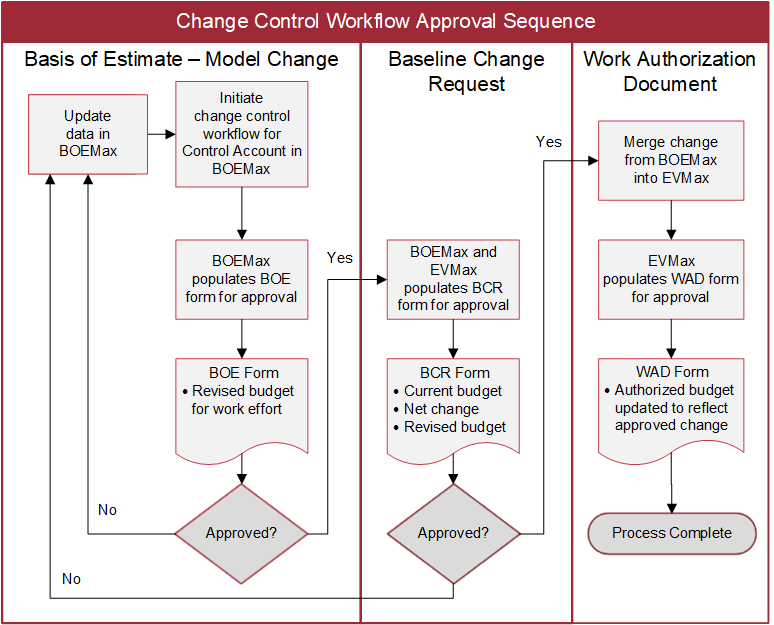
As a reminder, change control is a three step closed loop approval process initiated in BOEMax at the control account level. This is illustrated below.
 Step 1: Begin with the proposal project in BOEMax
Recommend starting with the source data created for a proposal submission so the project control team can use the basis of estimate as the foundation for the budget baseline.
Follow the usual steps for creating a new project in BOEMax and build out the time phased cost estimate data. Where applicable, this includes using network schedule resource loaded activities as the basis for the cost estimate data. Recommend selecting the appropriate earned value technique (EVT) for the work packages when you create the data. The default is percent complete. This will save you a step once the project transitions to the execution phase.
Step 2: Copy the proposal project to create the budget baseline project in BOEMax
Recommend making a copy of the proposal project in BOEMax to establish the budget baseline project as part of the initial start up and planning phase for the new project. That way the source proposal data is intact (historical proposal data) for future proposal submissions. The project control team can then update the source data in the new BOEMax project to align with the contract statement of work and other contractual requirements.
- In BOEMax, create a copy of the proposal project. Be sure to click the check box. When you create the project, enter a project Name so it is clear it is a budget baseline project. You may also want to update the Description once the project is created (Project Data > Manage Projects, Name tab).
- When you have created user defined ENS nodes, assign the new baseline project to the applicable node.
- As needed, update the project level settings for the new project. You may need to shift the project start date to reflect the actual start date (Project Data > Manage Projects, Settings tab). Verify the start and end dates reflect the contract dates. Recommend setting these dates before you import the project into EVMax. You can only shift the start date in BOEMax. When you shift the project's start date, the base values for the work package resource assignments are respread and recalculated. The work package start and finish dates are determined based on the original dates, duration, and revised project start date. Total values may change as different labor or overhead rates may apply for the revised time frame. This is dependent on the rate effective dates.
- Also update the applicable workflow roles for the execution phase (Project Data > Manage Projects, Settings tab). For example, perhaps the proposal manager and estimator roles no longer apply for the execution phase whereas roles such as a project manager, control account manager, or project controls person do apply.
- Update the access rights for the new project (Admin > Users, User Rights tab) so the people assigned to the project can access the project and where applicable, initiate the workflow process.
- Assign the named personnel to the workflow roles for the control account rows in the main Estimate window (Home > Estimate, Admin tab).
- As needed, update the budget data for the new project to establish the baseline. When applicable, this includes using network schedule resource loaded activities as the basis for the budget data. Be sure to verify the appropriate earned value techniques (EVTs) have been assigned to the work packages. In particular, look for work packages assigned the Material assumption type where the project's BOM was used to determine the budget direct costs. The EVT should be set to "Quantities" so you can the use BOM to enter earned quantities during the project's execution phase to calculate earned value.
- For rolling wave planning, either create summary level planning packages or control account level planning packages for future work effort.
- As needed, update the Basic rate class for the budget values to incorporate the current forward pricing rates. Rate classes are defined in the Rate Structure assigned to the project.
Note:
Depending on your internal process and procedure requirements, you may or may not have an initial work authorization process. Where applicable, you can add a workflow (see Create a Workflow Process) for the initial work authorizations once the budget baseline has been established. Depending on how you set up the workflow, the process could be initiated in BOEMax or EVMax.
Step 3: Import the BOEMax budget baseline project into EVMax
Once the budget baseline has been established in BOEMax, import it into EVMax to begin the execution phase. The BOEMax project functions as the master copy of the budget baseline. As control account and subordinate work package changes are approved in BOEMax, the transactions become a historical record of all the baseline changes. Approved changes are merged into the EVMax project so it reflects the current approved budget baseline.
- In EVMax, follow the steps to Import a Project from BOEMax.
- When you have created user defined ENS nodes, assign the new project to the applicable node.
- Modify the project level settings for the new project to reflect the execution phase. Recommend:
- Updating the contract information such as the Contract Number and Project Number (Project Data > Manage Projects, Contract tab).
- Generating the actual cost and forecast codes for the new project. This determines the level of detail for the actual costs and estimate to complete data. See Generate Project Cost Codes
- Verifying the project start and end dates (Project Data > Manage Projects, Settings tab). These should have been set before you imported the project into EVMax. When the start date of the project is within the start and end date of the first reporting period, it isn't necessary to set the current period for the project.
- Enter the contract budget base data (Project Data > Manage Projects, Change Control tab). See Set the Project Budget Base.
- Enable the change control log (Project Data > Manage Projects, Change Control tab). See Enable the Change Control Log. Selected contract budget base fields such as the negotiated cost and authorized unpriced work are disabled once the log is enabled.
- Be sure to set the default change control debit account to either management reserve or undistributed budget before you starting processing control account and subordinate work package changes. See Set Budget Change Debit Account.
As work progresses on the project, follow your normal status and analysis process to calculate earned value, import actual costs, and maintain the estimate to complete values for each reporting period. When you need to update the budget baseline for the remaining work, you start the process in BOEMax. See Step 4.
When you need to make changes to the contract budget base data, they are entered at the project level (Project Data > Manage Projects, Change Control tab) in EVMax. See Enter Project Budget Changes. These changes to the project level negotiated cost or authorized unpriced work and as a result, distributed budget, management reserve or undistributed budget, are also recorded in the change control log.
Step 4: Initiate budget baseline changes in BOEMax
As noted in Step 3, the BOEMax project functions as the master copy of the budget baseline. As control account and subordinate work package changes are approved in BOEMax, the transactions become a historical record of these baseline changes (before values, plus or minus change values). Approved changes are merged into the EVMax project so it reflects the current approved budget baseline (after values).
- In BOEMax, update the budget data to model the proposed change for the applicable control account and subordinate work packages. When you have integrated your schedule and cost data, initiate your changes in the schedule tool and then import them into BOEMax so you maintain that traceability as well.
- Initiate the Workflow Process for the applicable control account row in the main Estimate window (Home > Estimate, Admin tab). Select the change control workflow process. The Workflow Queue now includes the BOE form for the control account with data auto populated from BOEMax.
- Each user in the workflow queue reviews the BOE workflow form for the control account and subordinate work packages, enters narrative information or other data as applicable, and approves the form. See Approve a Workflow Form. Once the last person in the queue approves the BOE form, the BCR form is automatically populated.
Note:
When you need to convert a summary level planning package to one or more work packages, you will need to convert it in BOEMax and EVMax. See Add WBS Planning Packages. This topic includes use notes when you are ready to convert the summary level planning package into one or more control accounts with subordinate work packages and planning packages. The reason you need to do this conversion in both products is that the BCR form is looking for instances where the control account level flag is set to "True." Recommend making this change before processing the baseline change form in EVMax.
Step 5: Approve the changes and merge the data into EVMax
The workflow process now transitions to EVMax for the control account and subordinate work package changes.
- Each user in the workflow queue reviews the BCR workflow form, enters the change rationale or other details, and approves the form. Once the last person in the queue approves the BCR form, the work authorization form is automatically populated.
- Merge the approved changes from BOEMax into EVMax. See Merge Data from BOEMax.
- Complete the work authorization approvals in EVMax. Once the last person in the queue approves the form, the change control process for the control account is complete.
- You may want to produce a budget change log report to verify the transactions. In the report option, select when you want to review just the project level changes, select when you want to review the control account and subordinate work package changes, or select to review the project level and control account level changes.