Manage Resources
 Admin User
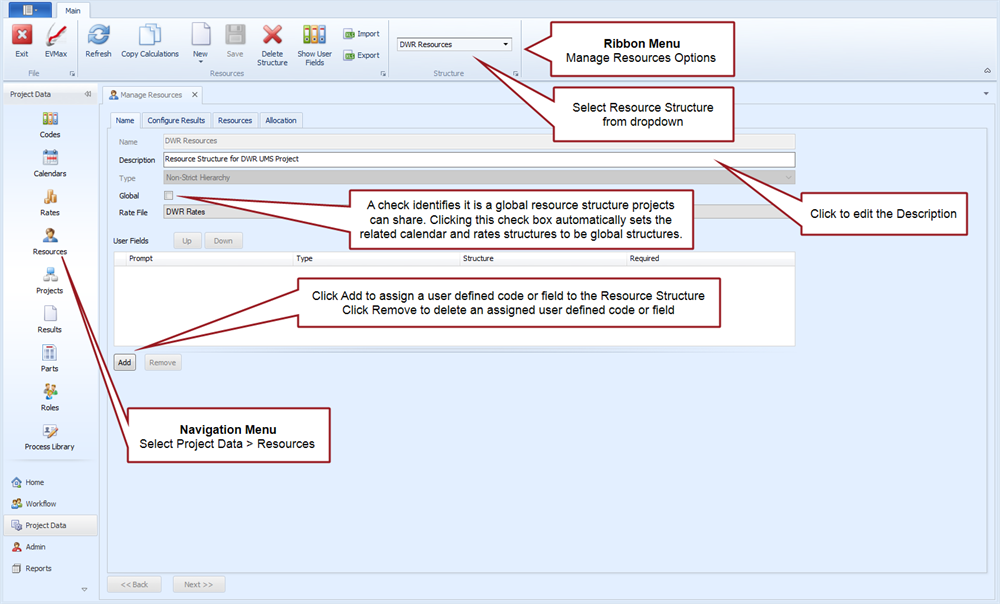
Resource structures are required to organize and identify the various labor, material, and other resources needed to complete specific project tasks for a defined scope of work. A resource structure is made up of a set of calculation results configured for the structure, a list of resources organized into a hierarchy with calculations settings, and resource allocations settings. Resource structures may be project specific or they are global structures projects can share.
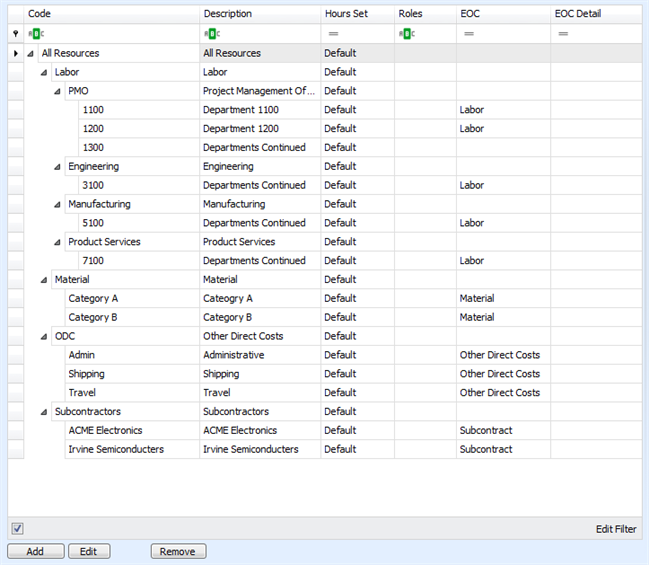
The resource hierarchy organizes the resources into summary and detail levels. This is useful for sorting and selecting resources as well as reporting. The summary levels typically reflect resource categories such as labor and non labor that align with a company's accounting and business practices. The lowest level in the resource hierarchy are the resources assigned to complete a task - the work packages in the main EVMax window. You define how the rate calculations are applied at the lowest level. An element of cost category (EOC) such as labor, material, or other direct costs is also typically assigned to the lowest level resources.
 Examples
Example 1

Example 2
Implementation Tips
- Calendar, rate, and resource structures are unique to each project or they are global structures projects can share. The related calendar and rate structures must be set up before the resource structure. The resource structure uses the assigned rate structure to calculate direct and indirect costs from the base value users enter to estimate or plan labor and non labor resources. In instances where a Rate Group name matches a Resource name, the Rate Group is automatically assigned to the resource.
- If you don't want to set up global structures, create a core base resource structure template with commonly used configuration results and hierarchy of resources with resource calculations all projects are likely to use. That way other users can quickly create a copy of the core resource structure, make any edits, and add their project specific resources.
- Determine whether you need to add user defined codes or fields for the resources. Define and add them to the resource structure (see Add Resource User Fields) before you start to add resources into the structure. Adding a code or field later means you will need to go back and enter the additional data for the resources you have already defined. Recommend you also Set the Available Resources and select the Resource Filter options when you create the project (see Create a Project, Structures tab and Settings tab).
- If you intend to use the MaxBoard Resource Portfolio analysis views, consider defining your resource roles before you start to add resources into the structure. That way you can assign a resource role when you add the detail level resource.
- Determine how you would like to organize the resources into summary level categories. This can help you to determine the resource structure levels before you start entering the resources into the structure.
- There is a predefined list of four standard summary element of cost (EOC) categories that all ProjStream software tools and projects share. The predefined list includes Labor, Material, Other Direct Cost, and Subcontract. You can add other user defined EOC categories to the predefined list or modify the predefined list. You can use these categories for sorting and selecting resources as well as for producing government contractual reports.
Manage Resources Tab
Main tab menu options
Configure Results tab

Resources tab

The Resources tab window left pane is a row and column grid view. For more information about using this type of view, see Navigation.
Allocation tab

Import a Resource Structure - Import tab

Import a Resource Structure - Mapping tab

Import Resource Calculation Results - Import tab

Import Resource Calculation Results - Mapping tab
